
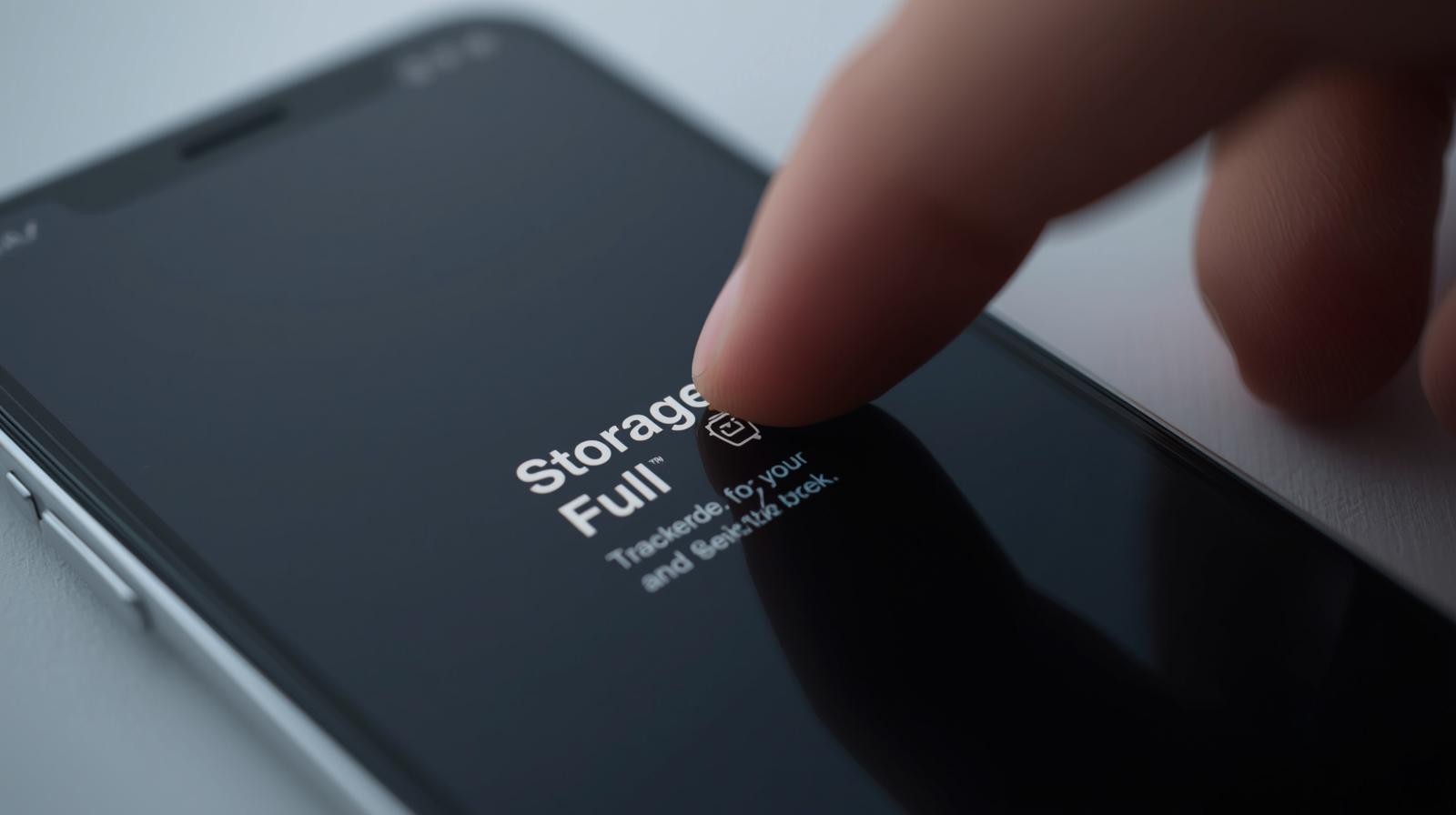
If your phone keeps warning you that storage is almost full, it’s more than just an annoyance — it affects performance, app updates, photo backups, and more. In the U.S., many users report frustration with running out of space even on modern smartphones, so this topic is both practical and high-value.
Here’s 6 things to do when your phone storage is full, complete with a table for clarity.
1. Delete Unused Apps
Old, rarely-used apps take up space and may still store data or mobile-cache. Open your app list and ask: “When did I last use this?” If it’s a long time ago, uninstall it.
Steps:
- Android: Settings → Apps → Sort by size → Uninstall unused apps
- iPhone: Settings → General → iPhone Storage → Review large apps
Removing these apps frees up space and reduces background processes.
2. Clear Cache and Temporary Files
Over time, apps generate cache, thumbnails, logs and temporary files. These often accumulate unseen and eat up gigabytes.
For Android: Settings → Storage → Cached data (or via Files app)
For iPhone: Many apps need to be off-loaded or re-installed to clear cache (Settings → iPhone Storage).
Clearing cache helps reclaim storage without affecting your personal data.
3. Move Photos and Videos to Cloud or External Storage
Media takes up the most space on modern smartphones. Make a habit of off-loading older photos/videos to cloud services (e.g., Google Photos, iCloud) or to a computer/external drive.
Create folders for “Archive” or “Older than 1 year” and move them. Once backed up, you can delete them from the phone.
This frees up storage and gives you peace of mind your memories are safe elsewhere.
4. Delete Offline Downloads & Big Files
Many streaming apps (music, video, podcasts) allow downloads for offline use. These files can be large and forgotten.
Go through apps like Netflix, Spotify, YouTube, and remove offline content you’ve already seen or listened to. Also check your “Downloads” folder and large file transfers.
Often you’ll find gigabytes of space being used by forgotten content.
5. Use Built-In Storage Optimization Tools
Most smartphones come with storage tools to show you what’s using space and help you clean it.
| Platform | Tool | What it does |
|---|---|---|
| Android (e.g., Samsung, OnePlus) | Settings → Storage → Device care/Storage optimizer | Highlights large files, unused apps, cached data |
| iPhone | Settings → General → iPhone Storage | Suggests off-loading unused apps, reviewing large attachments |
Using built-in features makes storage cleanup easier and safer than random third-party cleaners.
6. Empty Trash/Bin After Deletion & Maintain Free Space
When you delete items, always check if they go into a “Trash” or “Recently Deleted” folder — those still occupy space until permanently removed. For instance, Photos on iPhone and Android both have “Recently Deleted” folders.
Also, aim to keep at least 10-20% of total storage free — this buffer allows the system to operate well (background tasks, updates). Running near full capacity slows down the device and can block app updates.
Key Takeaway
Storage is more than just free gigabytes — it’s about device performance, update capability, and user experience. A phone full of “stuff” is a phone that works less reliably. By deleting unused apps, clearing cache, off-loading media, removing offline files, using optimization tools, and keeping a free-space buffer, you’ll find your smartphone feels faster and more responsive.